![Leucine medium.png]](https://support.leucine.io/hs-fs/hubfs/Leucine%20medium.png?width=200&height=38&name=Leucine%20medium.png)
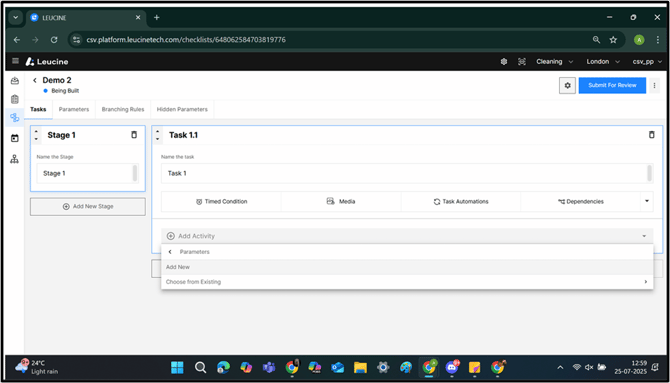
1. Click on ‘Add Activity’, then select ‘Parameters’, and choose ‘Add New’ to create a new parameter.
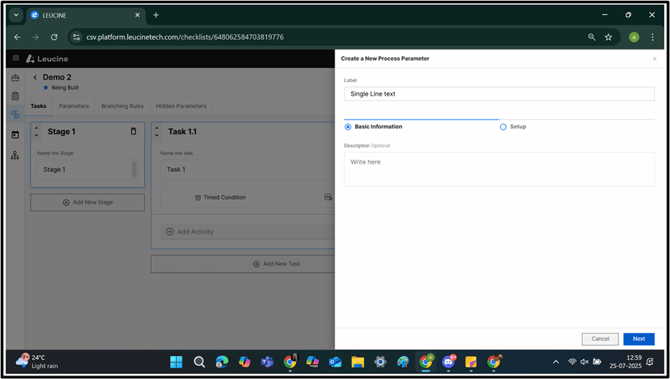
2. Enter the Label and Click on ‘Next’.
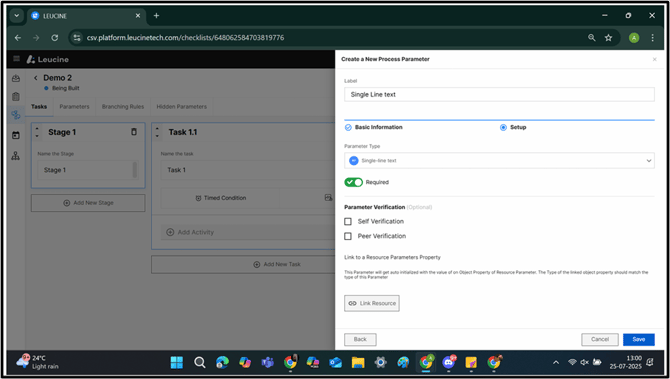
3. Choose the parameter type as ’Single-Line Text’.

4. Click on ‘Save’.
5. Click on ‘Add Activity’ and Select the ‘Parameters’.
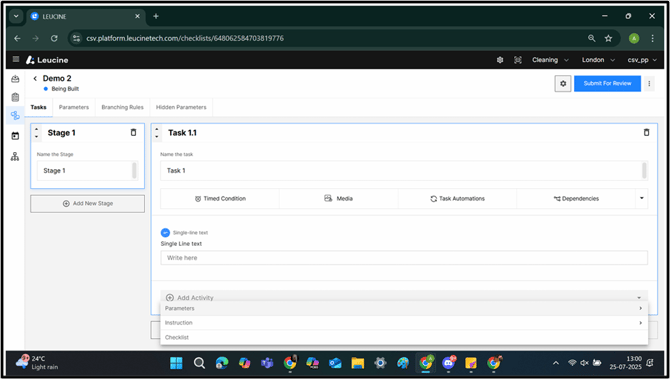
6. Select on ‘Add New’.
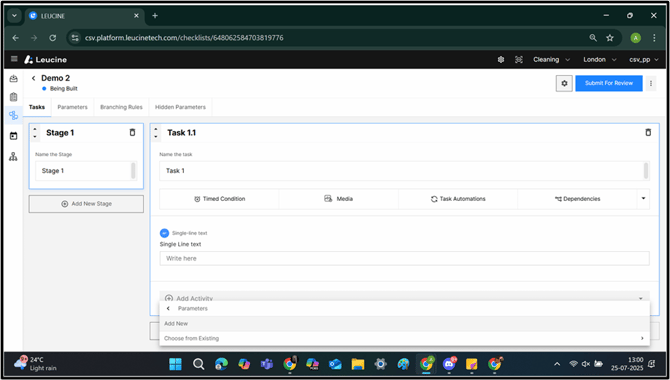
7. Enter the label and select the parameter type as ‘Number’.
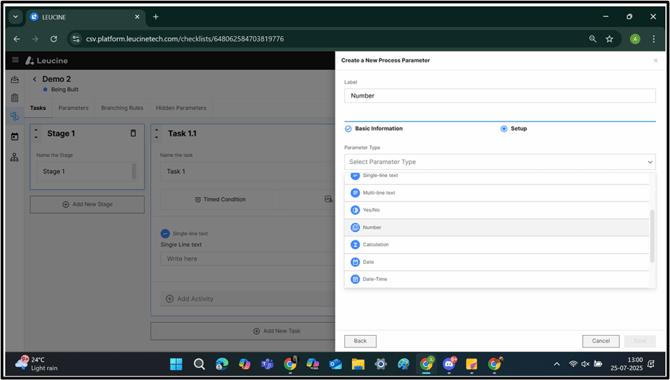
8. Click on ‘Next’ then ‘Save’.
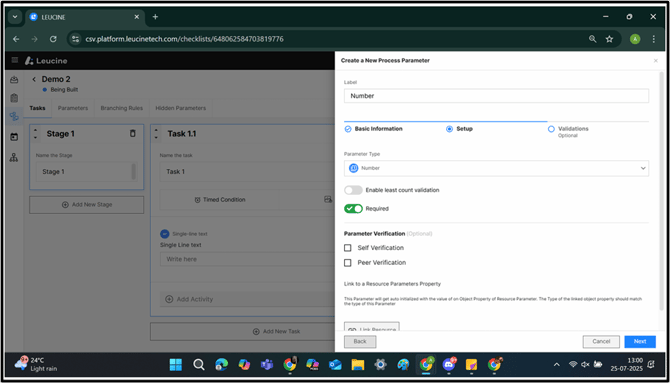
9. Click on ‘Task Automation’ Tab.
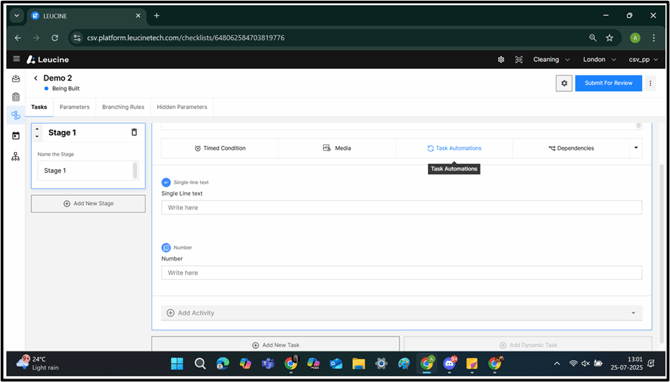
10. A pop-up window will appear.
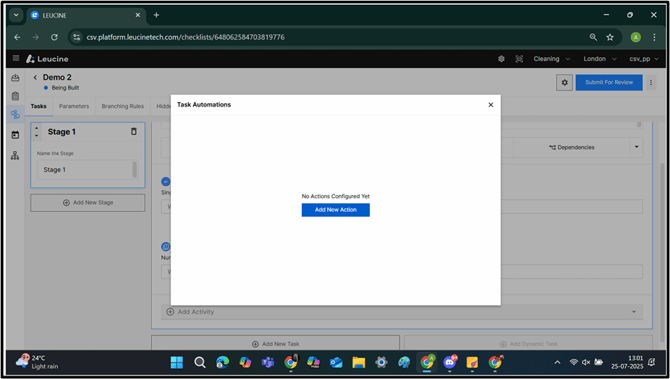
11. Click on ‘Add New Action’.
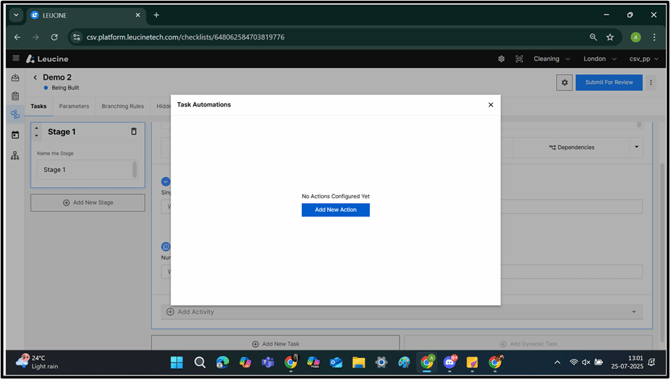
12. Enter the Label.
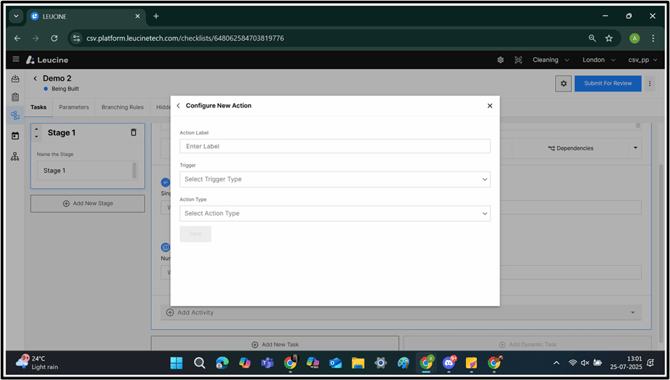
13. Select the Trigger ‘When task is Completed’.
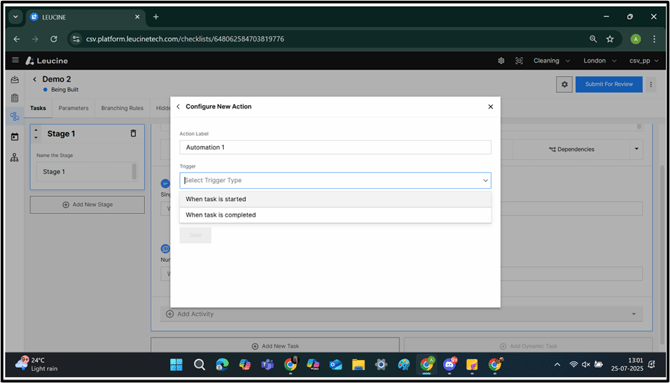
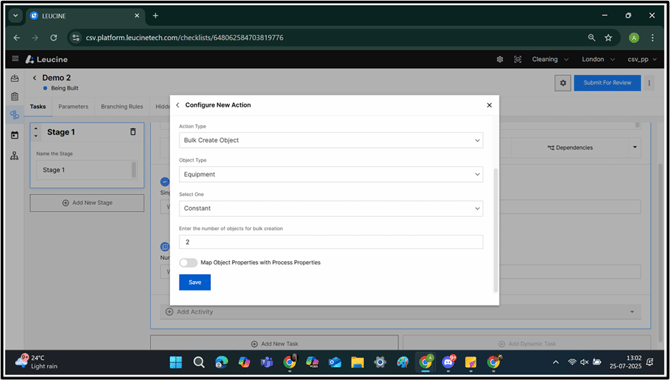
14. Choose the Action type ‘Bulk Create Object’.

15. Select The Object type.
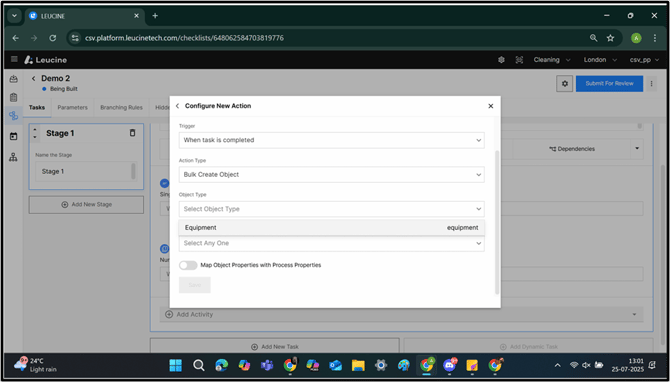
16. Select the Select One.
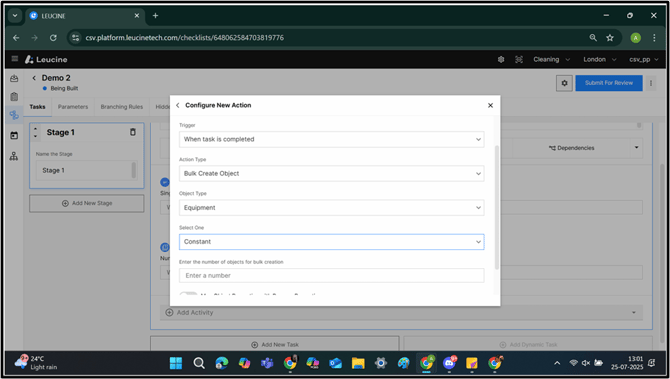
17. Choose ‘Constant’.
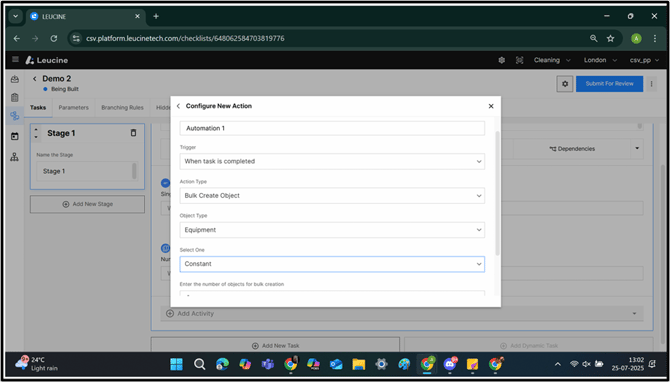
18. Enter the value for ‘Enter the number of objects for bulk creation’ and Click on ‘Save’.
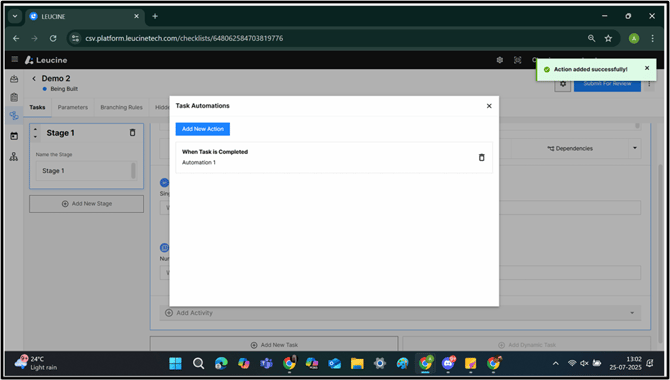
19. Notification pop-up confirming the Creation of Automation.
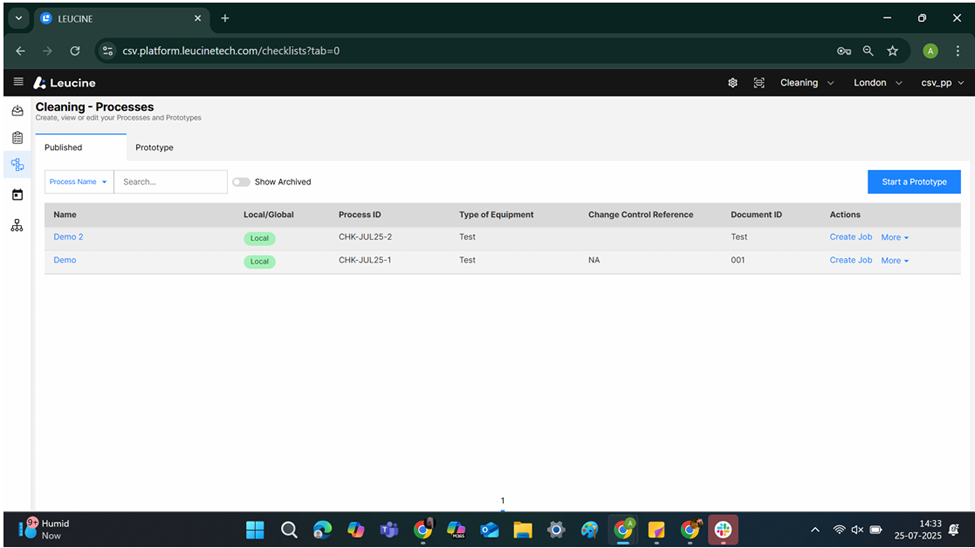
20. Create the Job for the Desired Process.
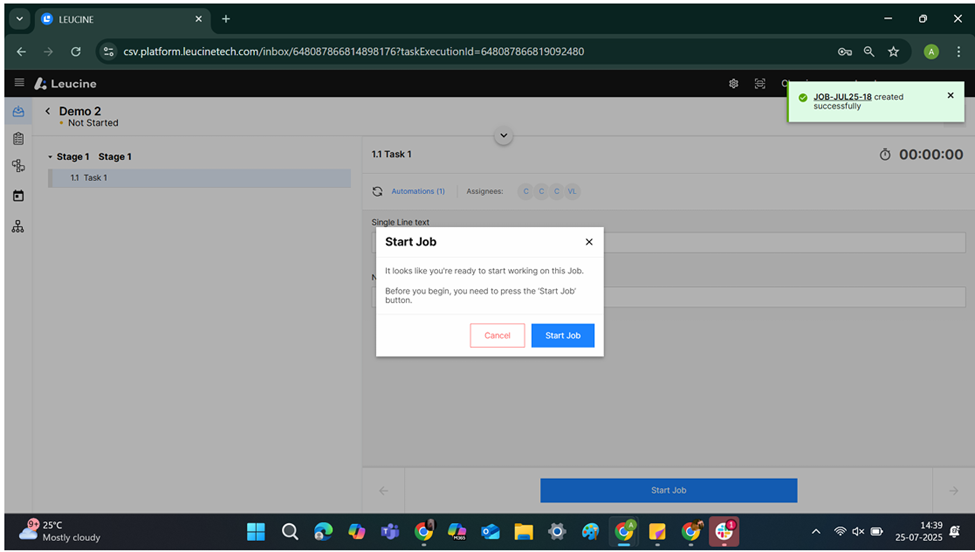
21. Redirects to the Job.
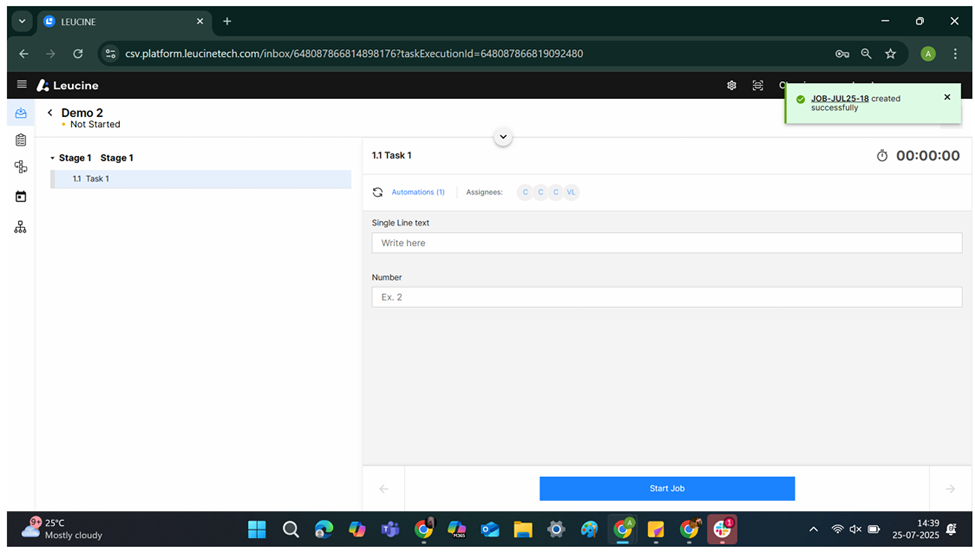
22. Click on ‘Start Job’ , pop-up window appears click on ‘Start Job’.
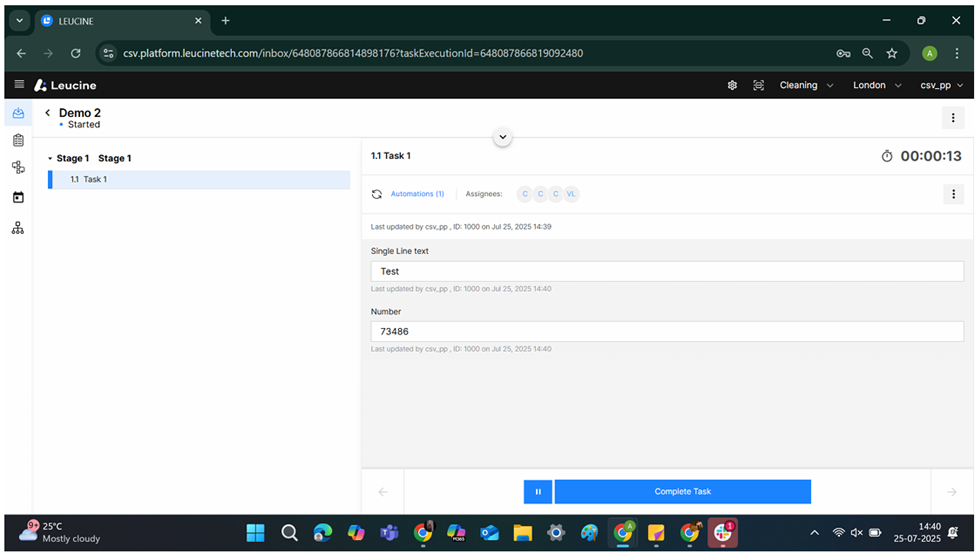
23. Fill the parameters and Click on ‘Complete Task’.
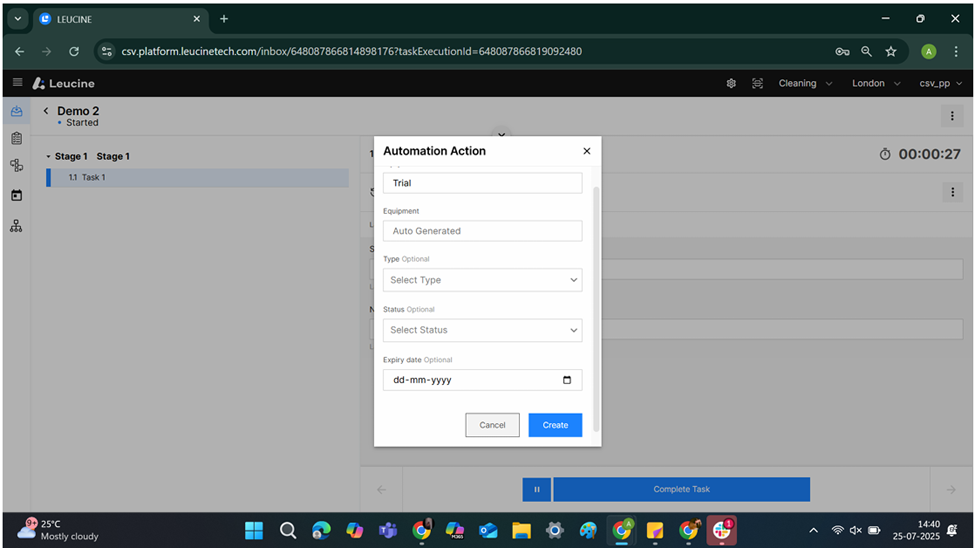
24. Automation Action pop-up , Click on ‘Create’.
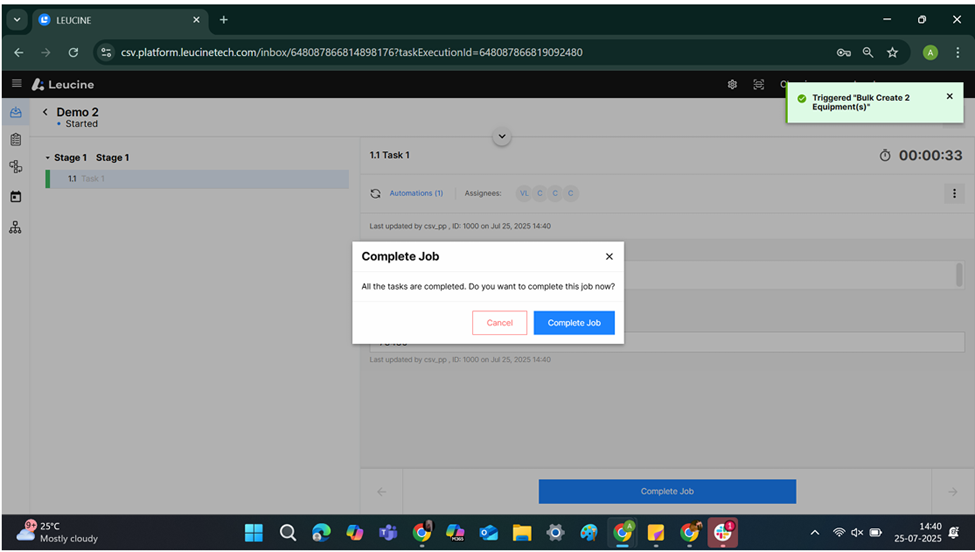
25. Click on ‘Complete Job’ and a pop-up window appears ‘Complete Job’, Notification pop-up confirming the ‘Bulk Create Object’.
26. On Ontology, the Objects are present in Object Type.